
No Cropping
Keep the original framing instead of cutting away the caption area.
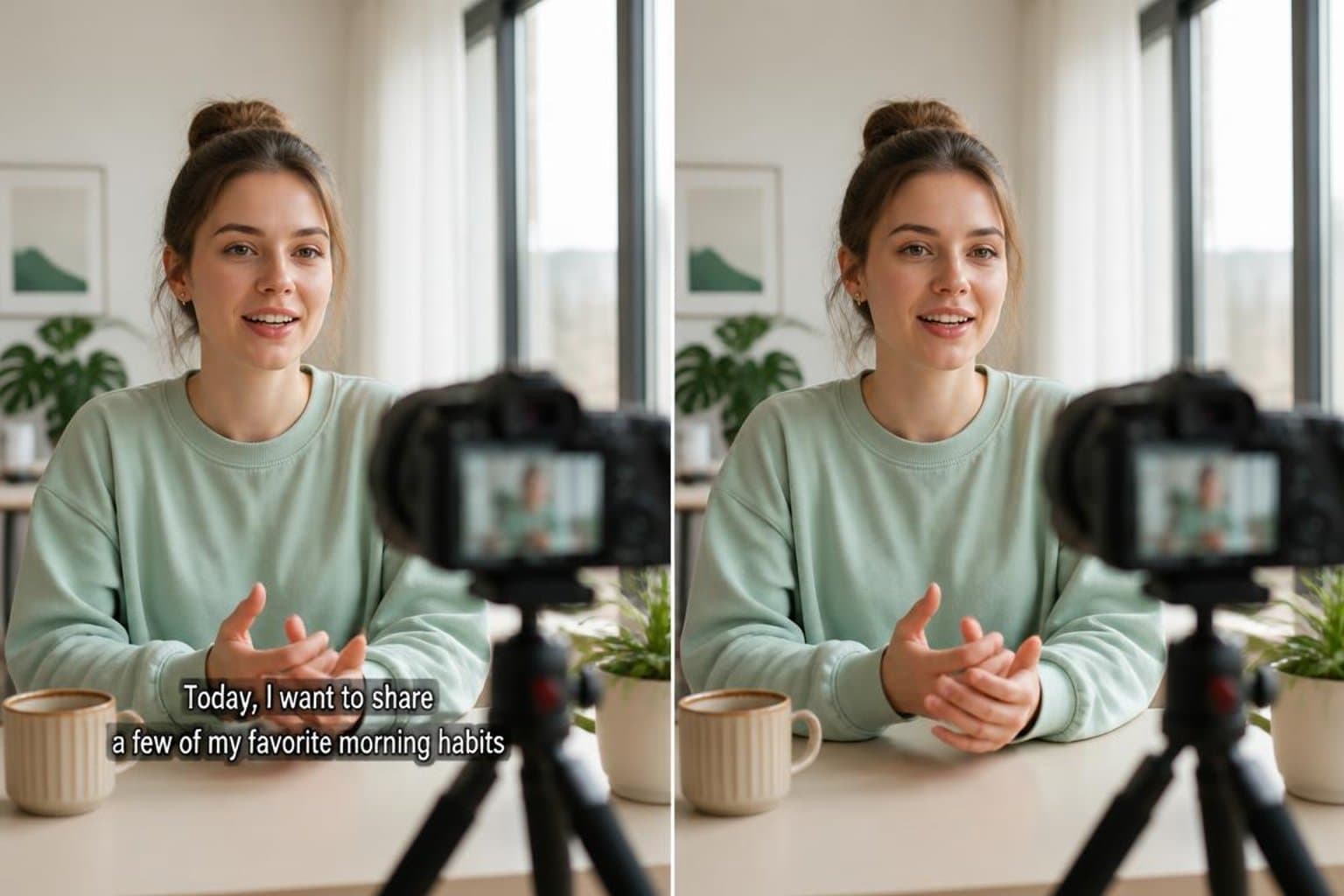
Remove subtitles from video online for free with an AI subtitle remover. Clean hardcoded and embedded subtitles without cropping or blur, then preview and download the clean video.
Click or dragMP4, MOV, or WebM
 Before
 After
AfterThe exported video has captions baked into the picture, so players and editors cannot switch them off.
Remove the caption layer without rebuilding the entire video in a timeline editor.
Keep the original framing instead of cutting away the caption area.
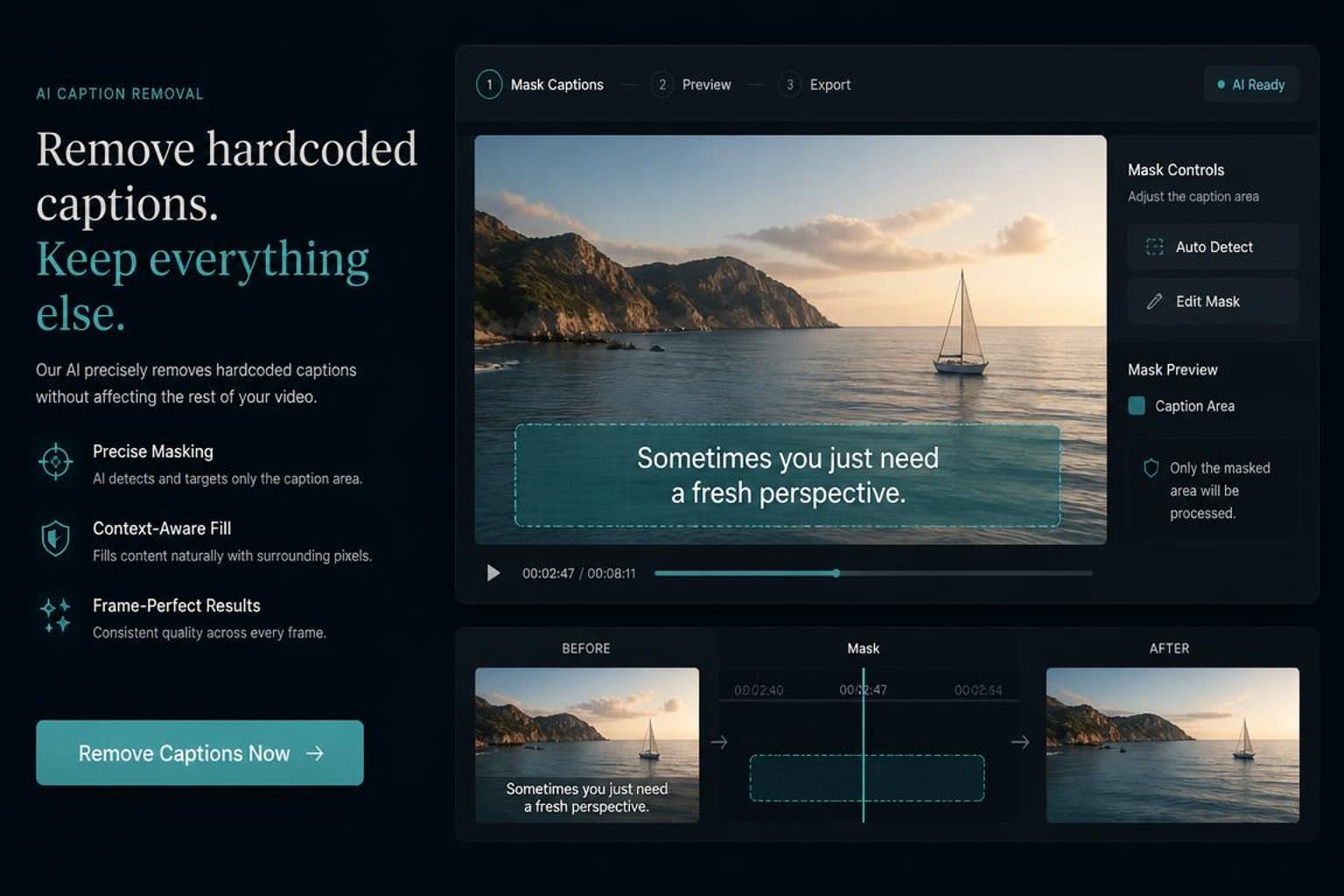
Repair the area behind burned-in captions instead of hiding it with a cover-up.
Keep the original sound, duration, and frame composition.
Inspect the repaired result before downloading or processing a longer clip.
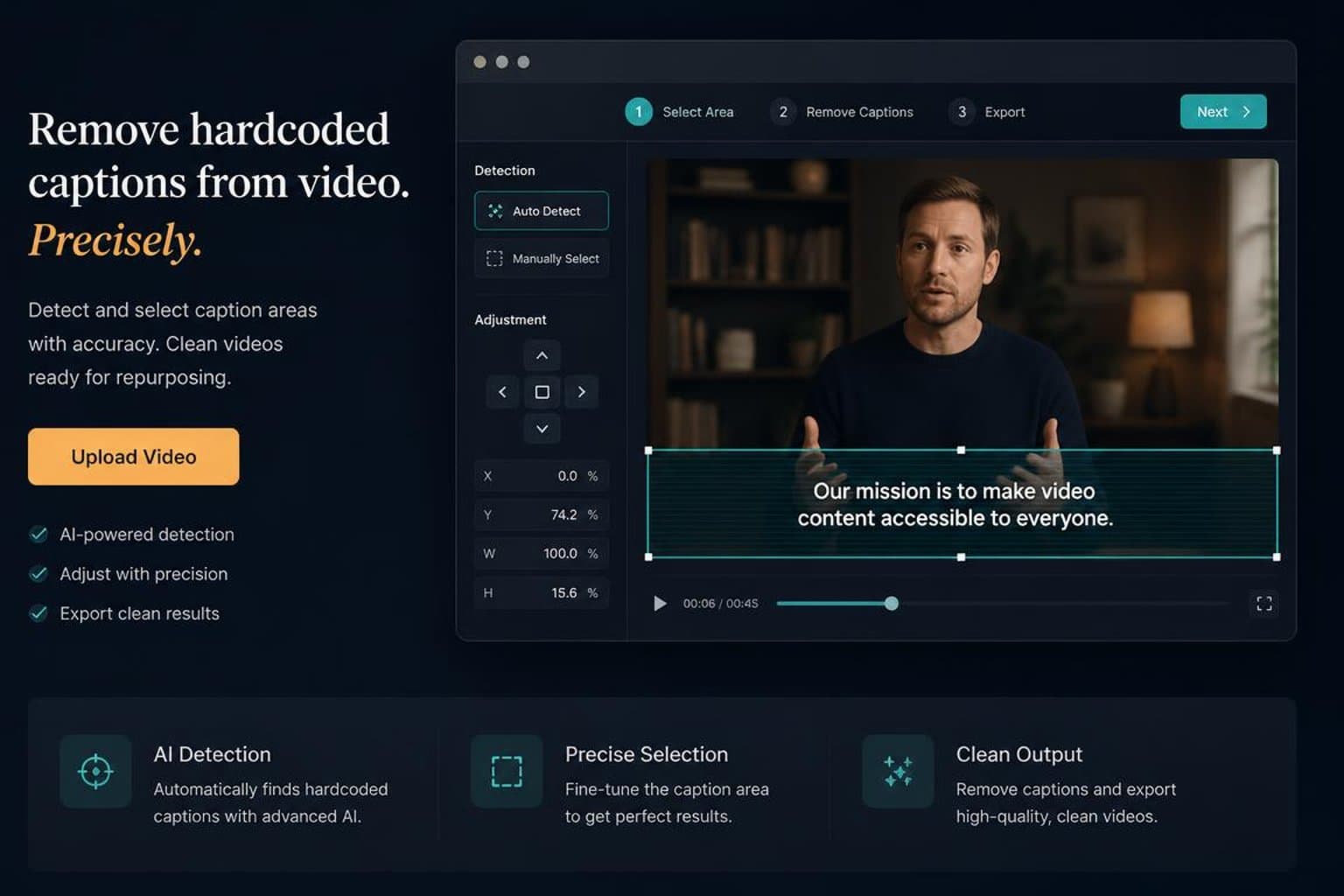
Use automatic detection for common caption positions, or adjust the area manually when the text moves or sits somewhere unusual.
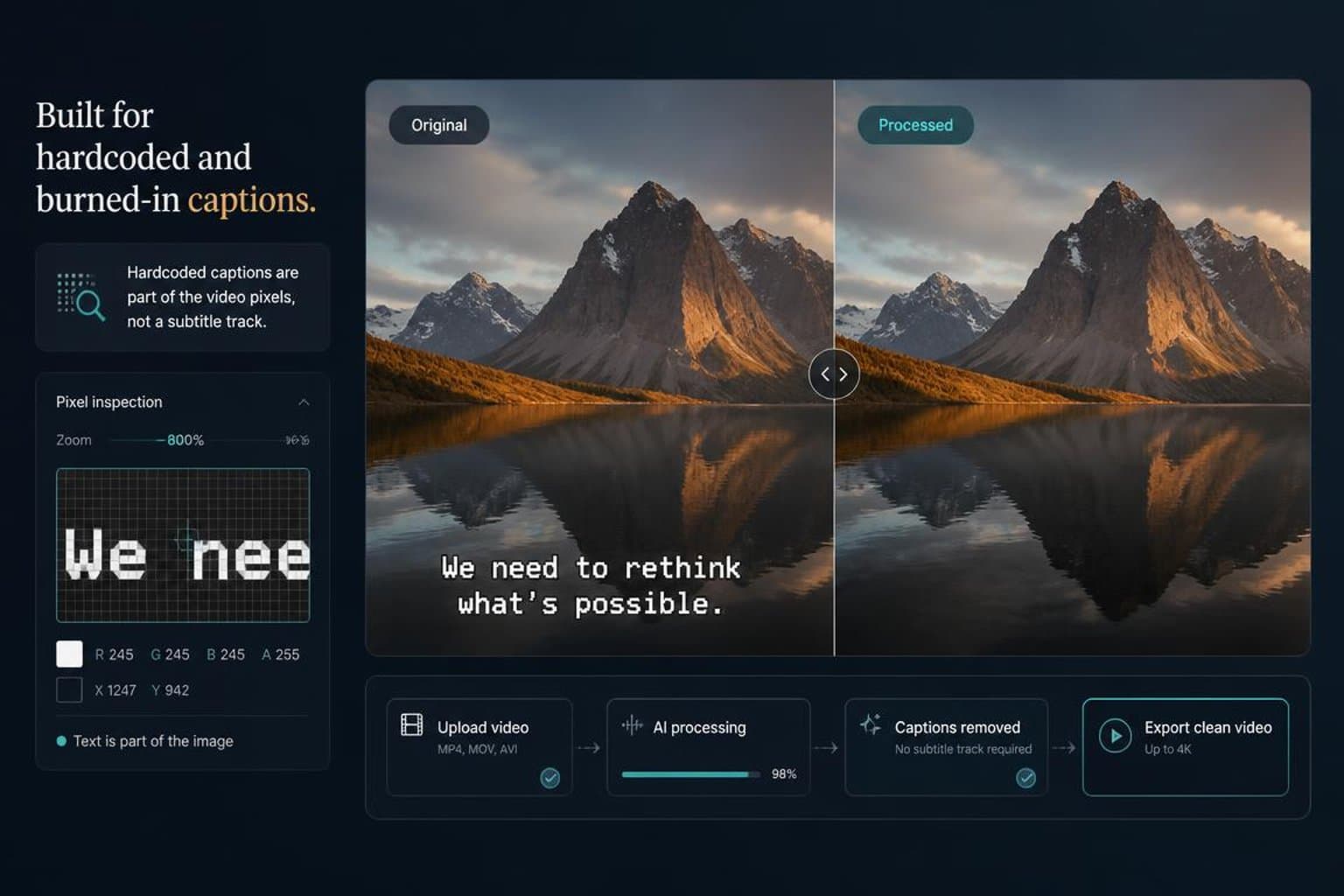
Handle captions that are already part of the video image and cannot be turned off like a separate subtitle track.
1 credit per 15 seconds of processing. Free preview available for short clips.
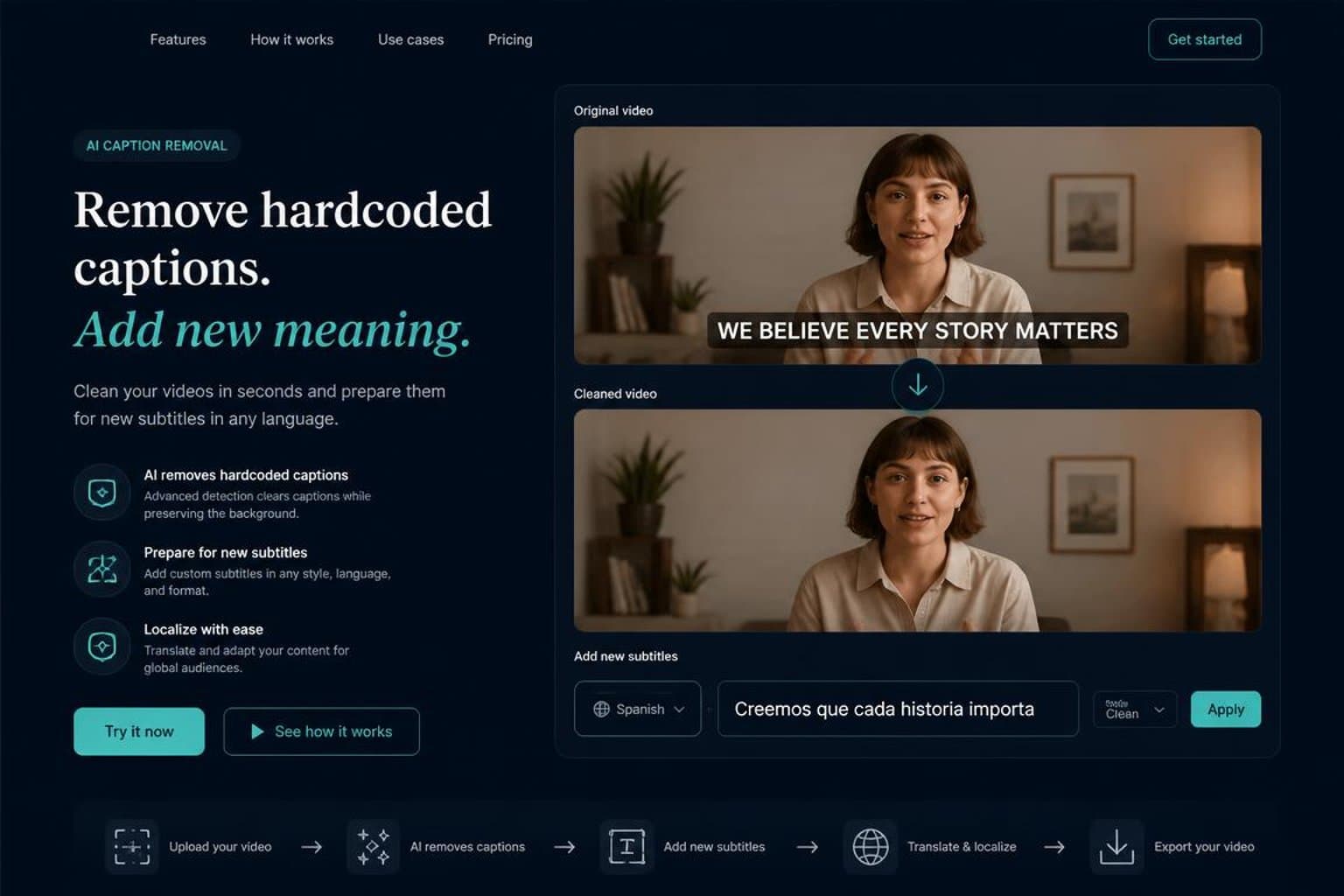
The repaired video keeps the same quality, dimensions, and frame rate as the original upload.
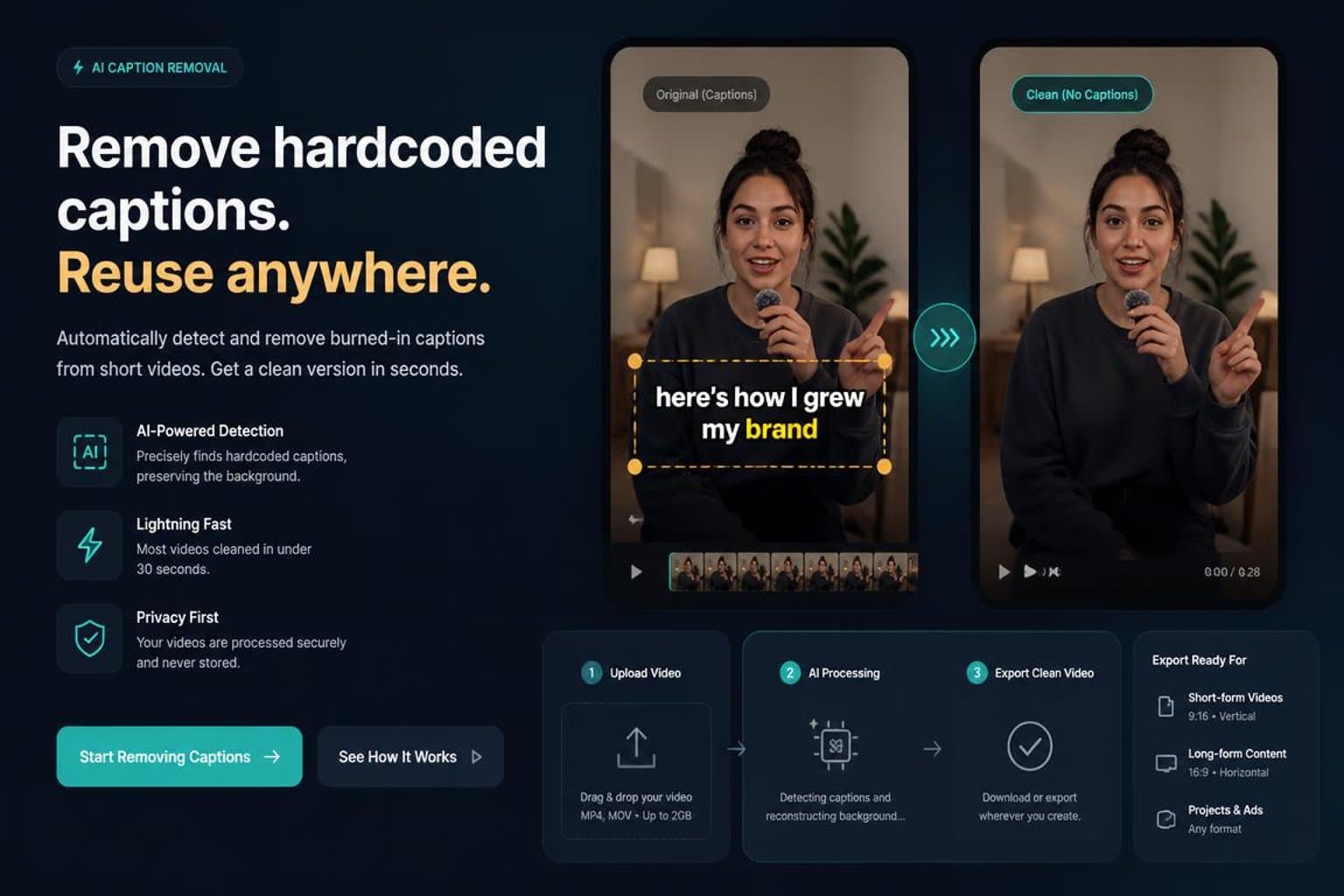
Upload a downloaded TikTok, CapCut, Reels, or Shorts export when captions are already burned into the video.
Upload the video, mark the caption area, and review the repaired result before downloading.
Upload the video you want to reuse, translate, or update.
Let the tool find the caption region or adjust it manually for better control.
Check the repaired frames, then download the result when it looks right.
Common feedback from creators, marketers, educators, and localization teams who need a clean video before republishing.
 01
01It helps rescue finished ads when the old caption style is already burned into the export.
 02
02Cleaning the original subtitle layer first makes translated subtitles much easier to review.
 03
03Useful when a lesson needs a caption fix but the original editing project is no longer available.
 04
04Older TikTok, Reels, and Shorts exports can be prepared for a new caption style before reposting.
 05
05The preview step makes it easier to decide whether a quick repair is good enough for reuse.
 06
06A focused caption workflow is faster than opening a full video editor for every small update.
Start free, subscribe for ongoing work, or buy credits only when you need them. 1 credit = 1 second.
No signup needed. Try it instantly.
1 video / day
For regular users and weekly projects.
$71 billed annually
For power users and high-frequency workflows.
$143 billed annually
For teams and high-volume production.
$287 billed annually
Clear answers about caption types, repair quality, supported workflows, and file handling.
Upload your video, wait while AI repairs the burned-in subtitle area, then preview and download the result.
Yes. It is designed for text that is already part of the video image and cannot be turned off.
Most pixels remain unchanged, but the reconstructed caption area can show artifacts on detailed or fast-moving backgrounds.
The current upload flow supports MP4, MOV, and WebM video files.
Upload a short clip, preview the caption repair, and decide whether the result works for your footage.